

Resolution
Guide
This guide outlines issues you’ll need to consider when supplying artwork to avoid delays and ensure great-quality print.
What is resolution
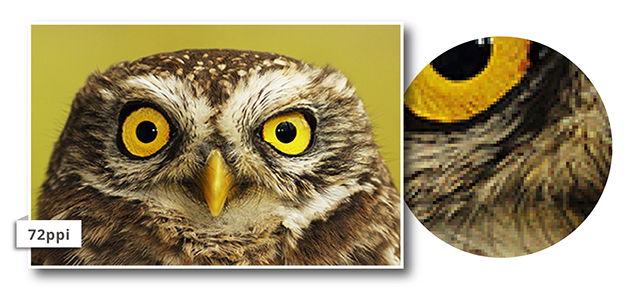
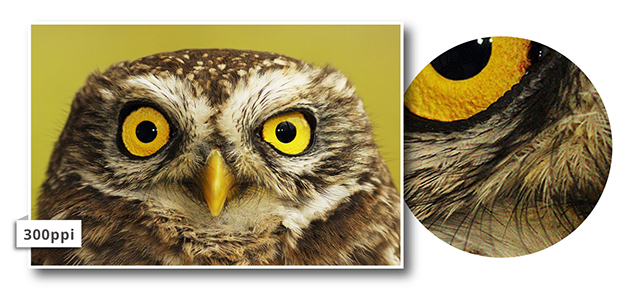
Resolution is a description of image quality. A high-resolution image will appear sharp and precise, while a low-resolution image will be blurred or pixelated.
The standard units for measuring resolution are pixels per inch (ppi) on screen and dots per inch (dpi) in print, indicating the number of dots or pixels along an inch-long line. The more image data there is to play with, the finer the picture quality.
What resolution is required?
The industry standard requirement for digital artwork files is a minimum resolution of 300ppi, or pixels per inch. That way, the file will contain enough image data to allow a printer to print at 300dpi, or dots per inch.
That figure comes from the world of publishing, where we’re used to considering an image that’s printed onto something you can hold in your hands and observe at arm’s length. At this resolution, the eye will read the image as a nice, smooth, continuous picture and not a blocky collage of colours.
How to create high-resolution documents
If you’re using design software to create or edit your artwork, it’s important to set the resolution for your project from the outset. In most programs, when you create a new image, a dialogue box will ask you how large you want your canvas and, crucially, X resolution and Y resolution.
X resolution dictates pixel density horizontally across the image and Y resolution does the same vertically. Lock these fields together or ensure the two values are identical to ensure consistent resolution horizontally and vertically.
There’ll usually be the option to pick what units of pixel density you’d like to use for resolution. For our purposes choose ‘pixels/in’ (this may appear as ‘PPI’ or ‘DPI’). For the vast majority of commercial print work, 300 will be an appropriate value to go for, because a 300ppi digital image will directly translate to 300dpi print resolution.
If you aren’t creating your artwork from scratch, you may want to check the resolution of any source images you wish to use.
How to check resolution
File size can be a fair indicator of the quality of an image, but it’s not conclusive. When preparing digital artwork to send to print, a revealing way to check it on screen is to zoom in on the image at three or four times the size of the final print. Viewing a PDF at 300% or 400%, for example, will give you an impression of how it might appear once printed.
This is because screens tend to display images at 72ppi whereas a print document will tend to be rendered at 300dpi. So by expanding your artwork to three or four times its real-life dimensions, you’ll be able to see if the image might appear pixelated in print.
Need Help?
Please contact us and we shall help you on your way . . .